
Download SparkleShare – Free Secure File Sync & Sharing Tool
Overview
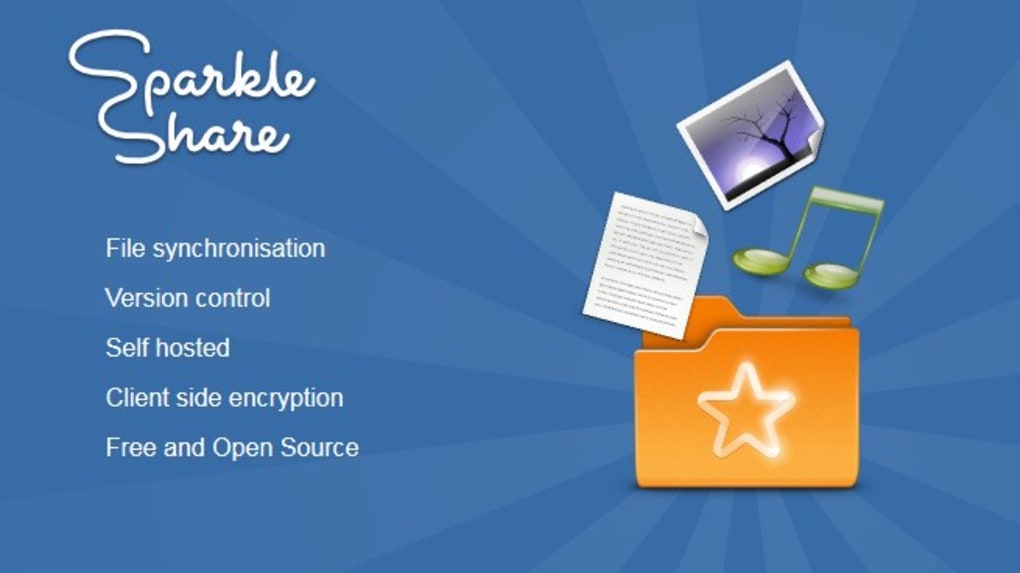
SparkleShare is a lightweight, open‑source file‑sharing solution that lets you turn any folder on your computer into a live‑sync hub. Unlike traditional cloud services that force you to store data on a third‑party server, SparkleShare lets you host the repository yourself—whether on a personal server, a VPS, or a network‑attached storage device. The moment you drop a file into the designated SparkleShare folder, the application encrypts the content, pushes the change to the remote repository, and then pulls any updates made by collaborators.
This continuous, bi‑directional sync makes collaborative work on documents, code, or media seamless. SparkleShare shines brightest when files change frequently, as it tracks every edit, keeps a detailed history, and lets you revert to previous versions with a few clicks. The interface is clean and minimalist, mirroring the look of modern OS file explorers, which reduces the learning curve for users familiar with basic file management.
However, the simplicity comes with a trade‑off: you need a modest amount of technical knowledge to set up the remote server and configure SSH keys. The application is free, cross‑platform, and actively maintained, offering a secure, cost‑effective alternative to commercial file‑sync services. Whether you’re a developer needing a private Git‑style sync, a design team sharing large assets, or an individual looking for a personal cloud, SparkleShare provides a transparent, encrypted bridge between your devices.
Key Features that Set SparkleShare Apart
- Automatic Bi‑Directional Synchronisation: Changes made on any device are instantly mirrored across all linked machines.
- End‑to‑End Encryption: Files are encrypted before leaving your computer, ensuring data privacy even on public servers.
- Version History & Revert Capability: Every edit is stored, allowing you to roll back to any previous state without hassle.
- Git‑Based Backend: SparkleShare uses Git under the hood, giving you powerful branching, merging, and conflict‑resolution tools.
- Cross‑Platform Support: Native clients for Windows, macOS, and Linux, with mobile access via third‑party apps.
- Self‑Hosted Flexibility: Host your repository on any server you control—VPS, home NAS, or even a cloud VM.
- Lightweight UI: Minimalistic folder‑view interface that integrates seamlessly with your OS file explorer.
- Open‑Source License: Free to use, modify, and distribute under the GPL, fostering community contributions and transparency.
- Selective Sync: Choose which folders to keep locally, conserving disk space on mobile or low‑storage devices.
- Extensible via Hooks: Leverage Git hooks to trigger custom scripts on commit, push, or pull events.
These features combine to create a robust, secure, and adaptable file‑sharing ecosystem. The Git‑based architecture means you benefit from a battle‑tested version control system without needing to learn complex commands. Encryption is handled automatically, so you don’t have to manage separate security tools. Moreover, because the software is open source, you can audit the code or contribute improvements, making SparkleShare a trustworthy choice for privacy‑conscious users.
Step‑by‑Step Installation & Usage Guide
Getting SparkleShare up and running is straightforward, but a few preparatory steps ensure a smooth experience. Below is a detailed walkthrough for Windows, macOS, and Linux.
1. Download the Installer
Visit the official SparkleShare website and click the “Download” button that matches your operating system. The Windows version is an .exe installer, macOS provides a .dmg bundle, and Linux users can choose a .deb, .rpm, or compile from source.
2. Install the Application
- Windows: Run the
.exe, accept the license agreement, and choose the default installation folder. The installer will add a shortcut to your Start Menu. - macOS: Open the
.dmg, drag the SparkleShare icon to your Applications folder, and launch it from Launchpad. - Linux: For Debian‑based distributions, run
sudo dpkg -i sparkleshare_*.deb. For RedHat‑based, usesudo rpm -i sparkleshare-*.rpm. If you prefer source, clone the Git repo and follow theREADMEinstructions.
3. Configure Your Remote Repository
Before syncing, you need a remote Git repository accessible via SSH. You can set up a bare repository on a server with the following commands:
ssh [email protected]
mkdir -p ~/sparkleshare/repos/project.git
cd ~/sparkleshare/repos/project.git
git init --bare
Generate an SSH key pair on your client machine if you don’t have one already (ssh-keygen -t ed25519), then copy the public key to the server’s ~/.ssh/authorized_keys file.
4. Add a Folder in SparkleShare
Launch SparkleShare and click “Add Folder.” Paste the SSH URL of your bare repository (e.g., ssh://[email protected]/~/sparkleshare/repos/project.git). Choose a local folder name; SparkleShare will create a hidden .sparkleshare directory inside it to manage sync metadata.
5. Start Syncing
Drag files into the newly created SparkleShare folder. The client will automatically encrypt, commit, and push changes. On any other device that has the same repository added, the files appear instantly. To revert a file, right‑click the item and select “Show History,” then choose the desired revision.
6. Advanced Tips
- Use
git config --global core.fileMode falseon Windows to avoid permission‑related commit noise. - Set up
post-receivehooks on the server to trigger notifications or automatic backups. - Enable selective sync in the client preferences to keep large media folders cloud‑only on mobile devices.
Following these steps gives you a fully functional, secure sync environment without relying on commercial cloud services. The process may feel a bit “dev‑oriented” at first, but the one‑time setup pays off with ongoing privacy and control.
Compatibility, Pros & Cons, and Real‑World Verdict
Supported Operating Systems: Windows 10/11, macOS 10.15 and later, Ubuntu/Debian, Fedora, Arch Linux, and other major Linux distributions. Mobile access is possible via third‑party Git clients on Android and iOS, though SparkleShare does not provide an official mobile app.
Pros
- Free & Open Source: No subscription fees and full transparency of the code.
- Strong Encryption: Uses SSH keys and optional GPG encryption for data in transit.
- Version Control Power: Git‑based history, branching, and conflict resolution.
- Self‑Hosted Control: Keep data on your own servers, avoiding vendor lock‑in.
- Lightweight UI: Minimal impact on system resources, integrates with native file explorers.
- Cross‑Platform Consistency: Same experience on Windows, macOS, and Linux.
Cons
- Initial Setup Complexity: Requires a remote Git repository and SSH key management.
- No Official Mobile App: Mobile users must rely on generic Git clients, which lack the seamless UI of desktop.
- Limited Cloud‑Only Features: No built‑in web portal for sharing links with non‑technical collaborators.
- Basic UI for Advanced Settings: Power users may miss granular configuration panels.
- Dependency on Server Availability: If your self‑hosted server goes down, sync stops until it’s restored.
Overall Rating: 4 out of 5 stars – SparkleShare delivers a compelling, secure file‑sync solution for users comfortable with a bit of technical setup. Its encryption, versioning, and zero‑cost model outweigh the lack of an official mobile client for most power users.
Frequently Asked Questions
Is SparkleShare truly free or are there hidden costs?
SparkleShare is released under the GPL license and can be downloaded, installed, and used without any payment. The only potential cost is the hosting of your remote repository, which you can run on existing hardware or a low‑cost VPS.
Can I use SparkleShare to collaborate with people who don’t have technical expertise?
Yes, but the onboarding process requires setting up an SSH key and providing the repository URL. For non‑technical collaborators, you may need to create a simple web portal or share the SSH credentials securely.
How secure is the data during synchronization?
All traffic between client and server is encrypted using SSH. Additionally, you can enable GPG encryption for files at rest, ensuring that even if the server is compromised, the data remains unreadable without the private key.
What happens if I accidentally delete a file?
SparkleShare keeps a complete Git history. You can right‑click the deleted file, view its history, and restore any previous version with a single click, effectively undoing accidental deletions.
Is there a limit to the size of files I can sync?
Technically, Git can handle large files, but performance degrades with very big binaries. For files larger than a few hundred megabytes, consider using Git LFS or a dedicated file‑transfer solution alongside SparkleShare.
Conclusion & Call to Action
SparkleShare offers a rare combination of zero cost, strong encryption, and Git‑powered version control—all wrapped in a clean, easy‑to‑use desktop client. While the initial setup demands a modest amount of technical know‑how, the long‑term benefits of owning your data and avoiding subscription traps are substantial. If you value privacy, need reliable sync for frequently edited files, and are comfortable managing a self‑hosted server, SparkleShare is a compelling choice.
Ready to take control of your file‑sharing workflow? Download SparkleShare now and start building a secure, self‑hosted sync environment today.







